Every graph, table, and widget in your dashboard can be downloaded and saved to your computer. You can even download and save your dashboard.
Downloading your Dashboard as a PDF
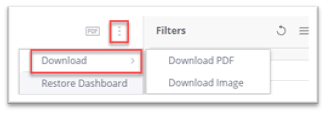
Once you have your dashboard set to your liking, you can download as a PDF by clicking the options button  at the top of the Filters pane and selecting Download > Download PDF.
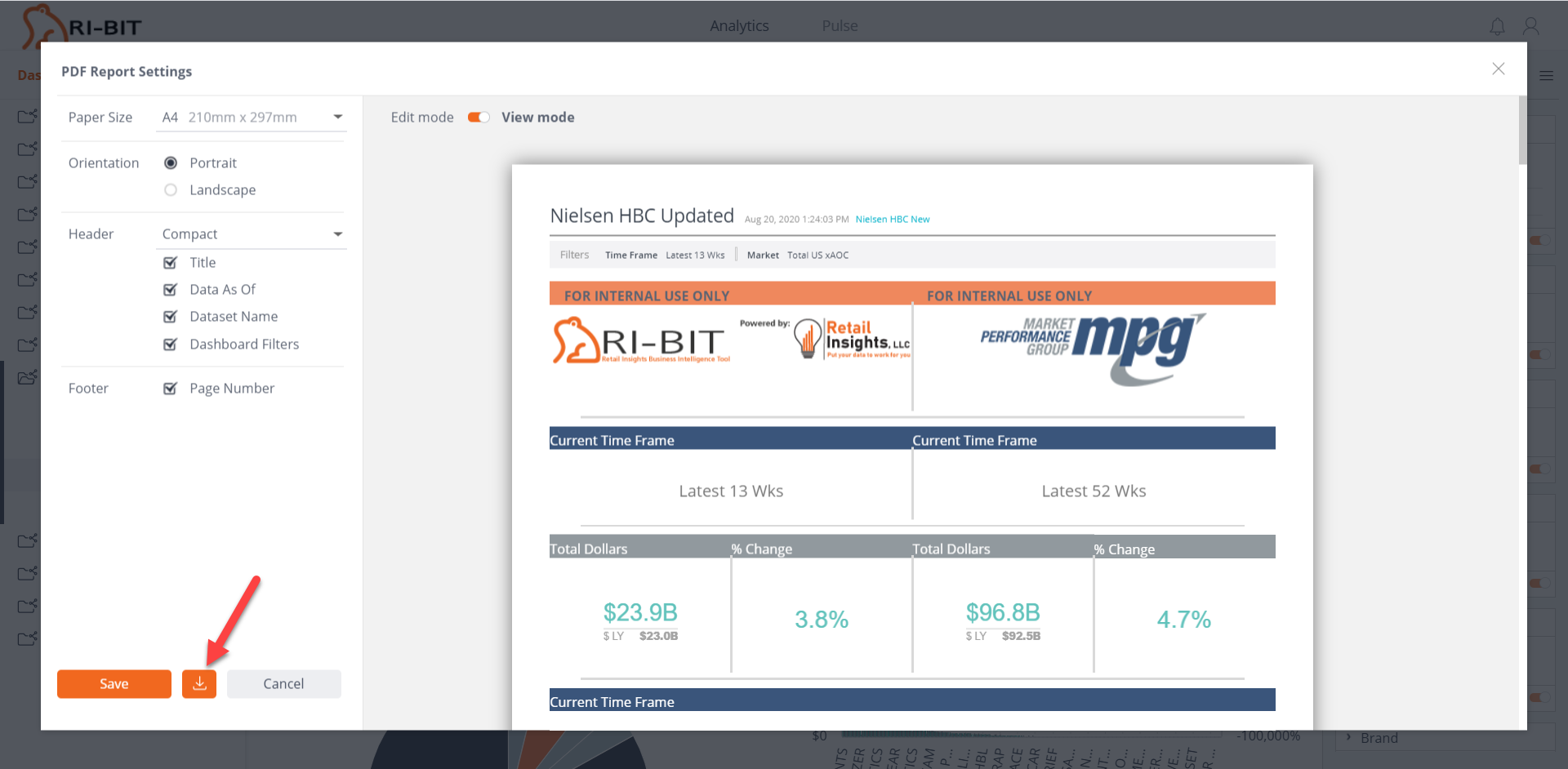
- The following PDF Reports Settings window will open.
- You can set Paper Size, Orientation, Headers and Footers.
- Once you have updated your settings, click the Download button
 to export and save your file.
Downloading Widgets to CSV/Excel
You can download widgets in the CSV format. This is also useful for using with Excel. Only the displayed (filtered) data is exported according to the currently selected filters. To download a widget to CSV:
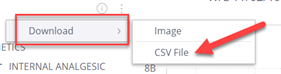
- In dashboard view, click on the widget’s menu, and select Download > CSV File.
Downloading a Widget as an Image
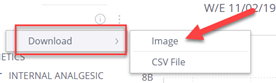
You can download a widget as an image (png format). This is useful for putting into presentations. To download the widget as an image:
- In dashboard view, click on the widget’s Options button, and select Download > Image.
Tip: The image size will reflect the size of the widget on the screen when you download it. To create a larger image, we recommend enlarging the widget space in the dashboard to get the bigger picture.
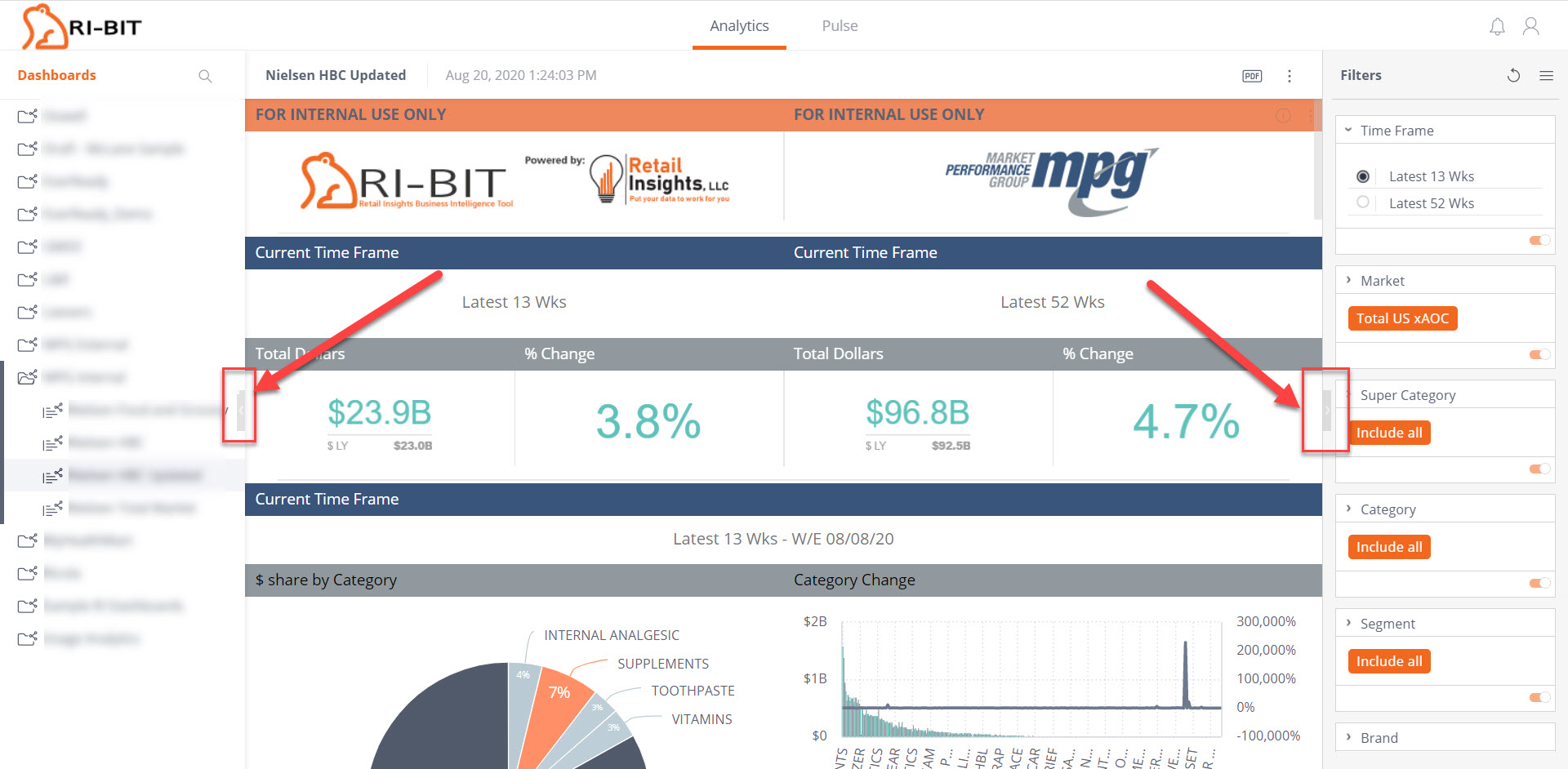
To make your screen bigger, move the arrows to the left and right of your screen so only your dashboard is showing, and the columns on the left and right are no longer visible: