You can modify filters in a dashboard and change the way values are sorted by clicking within any interactive widget on a dashboard. You can also filter by using the Filter panel to the right of the dashboard.
- You can select and deselect filters on a dashboard. Each time you interact with a filter, for example by selecting or entering a value, the filter is immediately applied to your
- Anytime you change a filter, you will see
 or
or  . Please be patient as your dashboard loads with your updated filter
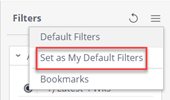
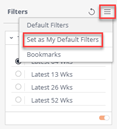
After you have configured the relevant filters, you can save it as your default filters view.
- Click on the
 icon to the right of your screen next to ‘Filters’.
 - Click ‘Set as my default filters’.
- Note: The next time you open any particular dashboard, your filter selections will be as they were left the last time you viewed that dashboard, whether or not you specifically saved as a default filter view or a bookmark.
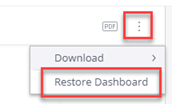
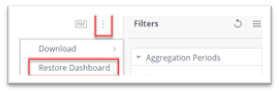
- You can reset to the default view of the dashboard by clicking on the Options icon at the top right of your screen and selecting Restore Dashboard.
Filter Panel
Expand the filter panel if it is not visible by clicking on the arrow icon at the right center of the screen.
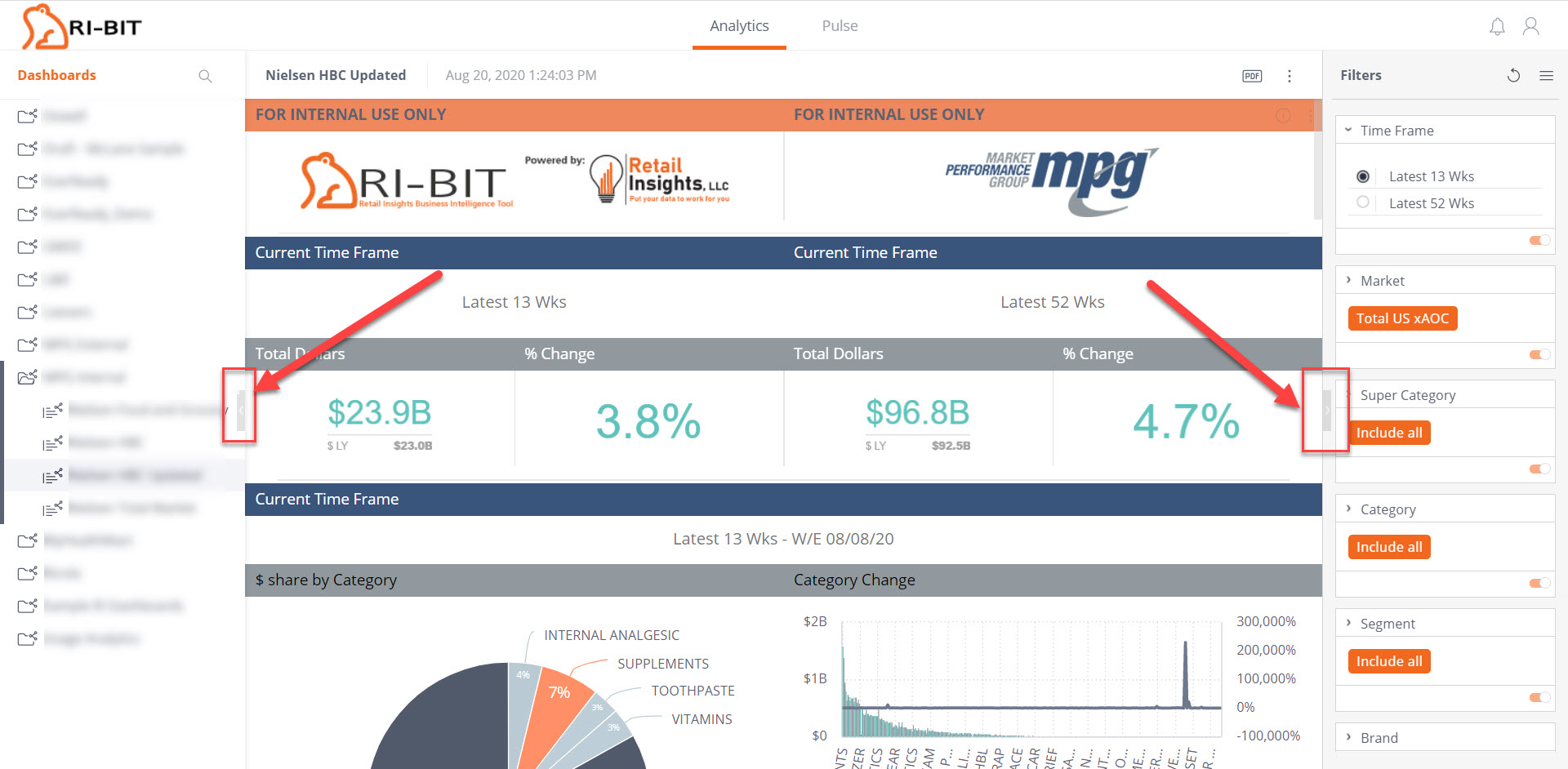
Click on the pencil icon next to the filter name in the dashboard. This will open a window and will allow you to select what you would like to filter on. Click OK and your filter will be applied.
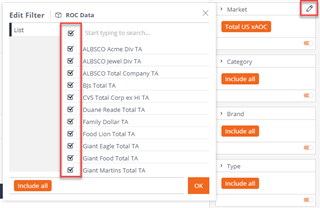
You can remove filters in this same window by checking the top box which will then change the filter to Include All.
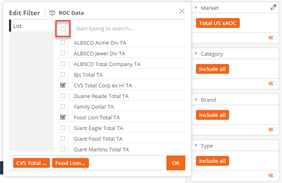
Remove Filters
- Filters can be removed by using the pencil to open the filter selection and checking the top-most box to Include All. You can also use the Options button at the top of the Filters panel and click on Default
- Individual filters can be removed from any widget they were applied to or you can restore the dashboard to the original shared version as described in the next
Restore Dashboard
- You can reset your Dashboard to the originally published version by clicking on the Options button at the top of the dashboard and selecting Restore Dashboard.
- This will remove all your custom filters.
Saving your Default Filters View
- Once you have your filters set for your dashboard, you can save them as your default filters by clicking the options button
 at the top of the Filters pane and selecting ‘Set as My Default Filters’. This means that each time you open this specific dashboard, it will be filtered the way you want to see it.